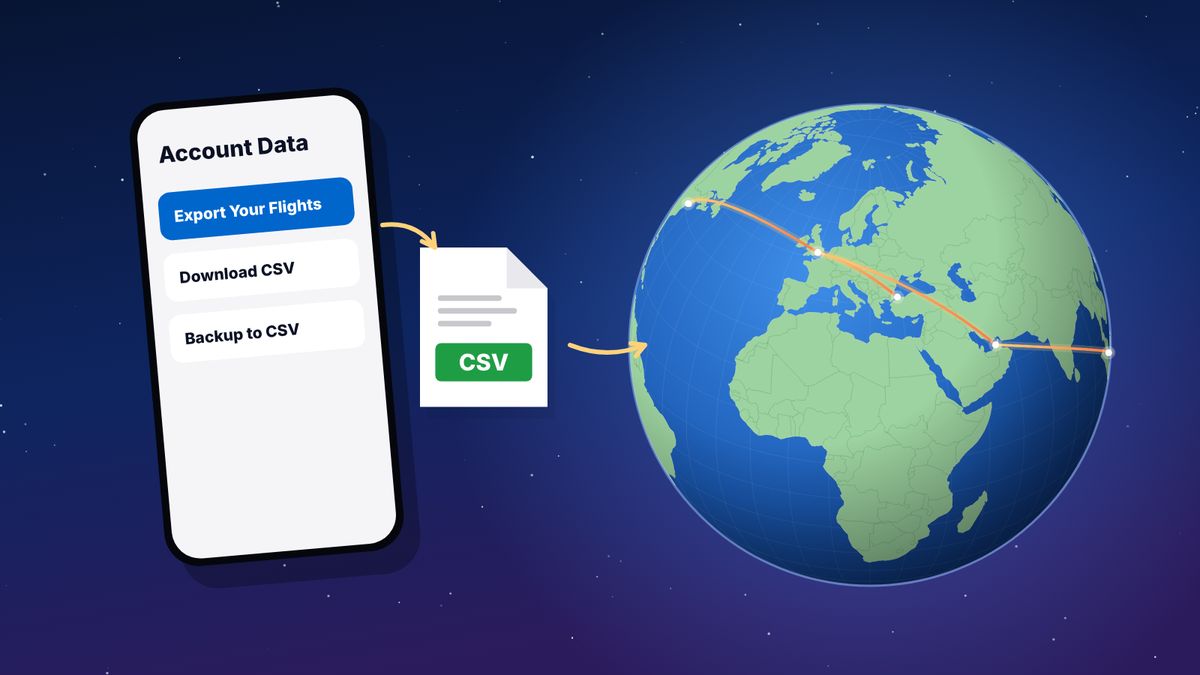
Most flight apps can export your history as a CSV file. Flighty: Profile, Settings, Account Data, Export Your Flights. myFlightradar24: on the website, Settings, Export, Download CSV. OpenFlights: Settings, Backup to CSV. TripIt gives a calendar feed or a calendar file per trip rather than a flight list. Keep the file somewhere safe; you can import it into another app, such as flew.world, without changing the original.
Your flight history is worth keeping. App in the Air’s closure in 2024 showed what happens when it lives in one app only: users who hadn’t exported in time lost years of flights. Exporting takes a minute, and it gives you a copy you control.
The steps below were current when we checked in November 2026. Apps move their menus around, so if a step doesn’t match, look in the app’s settings for “export”, “backup” or “account data”.
Flighty
Flighty is an iPhone, iPad and Mac app.
- Open Flighty and go to the Profile tab.
- Tap the Settings gear.
- Scroll to Manage and tap Account Data.
- Choose Export Your Flights.
- Save the CSV file to Files, or share it to your computer or email.
What’s in it: one row per flight with the date, airports, airline, flight number and times. Cancelled flights may be included and marked as cancelled; flew.world skips them when it imports.
Good to know: Flighty’s free version imports and shows past flights from the last 365 days; unlimited history needs Flighty Pro.
myFlightradar24
myFlightradar24 is the free flight log run by Flightradar24. Export from the website rather than the app.
- Sign in on the myFlightradar24 website on a computer.
- Click Settings in the top right corner.
- Open the Export tab.
- Click Download CSV.
What’s in it: every flight you logged, with date, flight number, airports (written like “Venice (VCE/LIPZ)”), times, airline, aircraft, registration, seat and notes where you entered them.
OpenFlights
OpenFlights is a free, open web log. Many long-time users have years of history there.
- Sign in on the OpenFlights website.
- Open Settings.
- Click Backup to CSV and save the file.
What’s in it: date, airports, flight number, airline, distance, duration, seat, class, reason, aircraft and registration, and notes.
Good to know: users on frequent-flyer forums report that OpenFlights is no longer actively maintained. If your history is there, export it now and keep a copy. See OpenFlights alternatives.
TripIt
TripIt organises trips rather than keeping a flight list, so it doesn’t export a flight CSV. You have two options:
A calendar feed (all trips, kept up to date):
- Sign in to TripIt on the web.
- Open Settings, then Calendar Feed.
- Copy the feed address. Apps that read calendar feeds, such as flew.world, can take your flights from it.
A calendar file for one trip: open the trip on the web and use the calendar option to download it as an .ics file.
Good to know: only flights in the feed come across. Older trips can be added by flight number and date.
App in the Air
App in the Air closed on 19 September 2024, and exports were possible until 19 October 2024. If you requested one, it arrived by email as an attached file. Search your inbox for “App in the Air” and “export” and save the attachment. It can still be imported into apps that support it, including flew.world. More in the best App in the Air replacements.
Airline loyalty programmes
Most programmes don’t offer a proper export, but many show a statement of flights that earned points. Save it as a PDF or screenshots, and add the flights to your log by flight number and date. Our guide to finding old flights covers this in more detail.
What to do with your export
Keep a safe copy
- Save the file in two places, for example your computer and a cloud drive.
- Name it with the app and the date, such as
flighty-2026-11-02.csv. - Export again once a year, or before you stop using an app.
Open it in a spreadsheet
A CSV file opens in Excel, Numbers or Google Sheets. It is useful for a quick look, a total or a filter, but you’ll need to work out distances and countries yourself.
Import it somewhere that does more with it
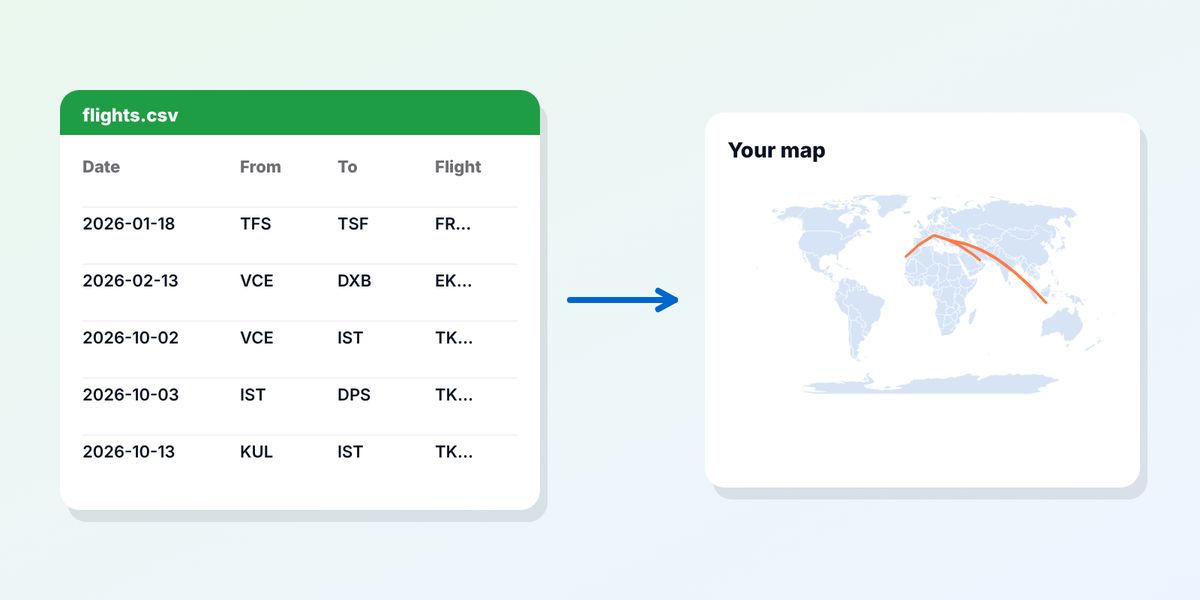
flew.world reads exports from Flighty, myFlightradar24, OpenFlights, App in the Air, TripIt calendar feeds and any CSV with a date and two airports per row.
- Open flew.world/import and drop the file in. It is read in your browser first, and you see your map before you sign up.
- Check the preview. Columns are matched automatically where they are recognised; you can choose the date and airport columns yourself if not. Rows that couldn’t be read are listed with the reason.
- Save with a free account. Possible duplicates are pointed out, never merged silently.
Your flights are grouped into trips, and each year gets a year-in-review page.
If the import doesn’t look right
Most exports import cleanly, but older or hand-edited files sometimes need a nudge:
- Dates read the wrong way round. 03/04/2019 can be 3 April or 4 March. Check a few flights you remember; if they are wrong, choose the date format in the import preview or fix the column in a spreadsheet.
- Airport codes. Three-letter IATA codes (LHR) and four-letter ICAO codes (EGLL) both work in most apps. Old or closed airports may not be recognised; replace them with the nearest current airport, or note them.
- Text in the airport column, such as “Venice (VCE/LIPZ)”, is read as it is by flew.world; other apps may need the code only.
- Special characters such as ü or ø look garbled if the file was saved in the wrong encoding. Save the file as “CSV UTF-8” from your spreadsheet.
- Duplicates appear if you import the same history twice; flew.world points out flights that may already be in your logbook so you can skip them.
Exporting from flew.world
The same rule applies to us: you should be able to take your data with you. In your flew.world logbook, the Export menu saves your flights as:
- CSV, for spreadsheets and other apps
- OpenFlights CSV, in the format OpenFlights and many other logs read
- KML, to open your routes in Google Earth
- GPX, for mapping tools
You can export all flights or only the ones in your current view.
Questions
How do I export my flights from Flighty?
In Flighty, go to Profile, Settings, then Account Data under Manage, and choose Export Your Flights. You get a CSV file.
How do I download my myFlightradar24 history?
On the myFlightradar24 website, click Settings, open the Export tab and click Download CSV.
Can I export my OpenFlights data?
Yes. In OpenFlights settings, click Backup to CSV.
Can I export flights from TripIt?
TripIt offers a calendar feed in Settings and a calendar file per trip, rather than a flight list. Apps such as flew.world can read flights from the calendar feed.
What format should a flight history file be in?
CSV is the most widely readable. At minimum it needs a date and two airports per flight; flight number, airline and aircraft are a bonus.
Sources
- Importing flights AirTrail documentation, with export steps for each app
- Download myFlightradar24 flight history Flightradar24 support
- OpenFlights import and export OpenFlights
- App in the Air to shut down on September 19, 2024 AlternativeTo
Updated 2 November 2026. Spotted something out of date? Tell us at hello@flew.world.